User guide
Discover how to use BasketTournament, whether you are an organizer or a tournament spectator.
From the Tournaments page, click 'New tournament'. You will need to define the fundamental parameters: name, dates, format (group stage + elimination, or knockout only) and visibility (public or private).


The following parameters are final once the tournament is created and cannot be changed:
- The tournament format
- Group configuration (number of groups, teams per group, qualifying teams)
- The best-of format per knockout round
- Visibility (public or private)
From the tournament detail view, add your teams one by one. For each team, enter its name, city, coach and colour. Then add players with their number, position, age and height.
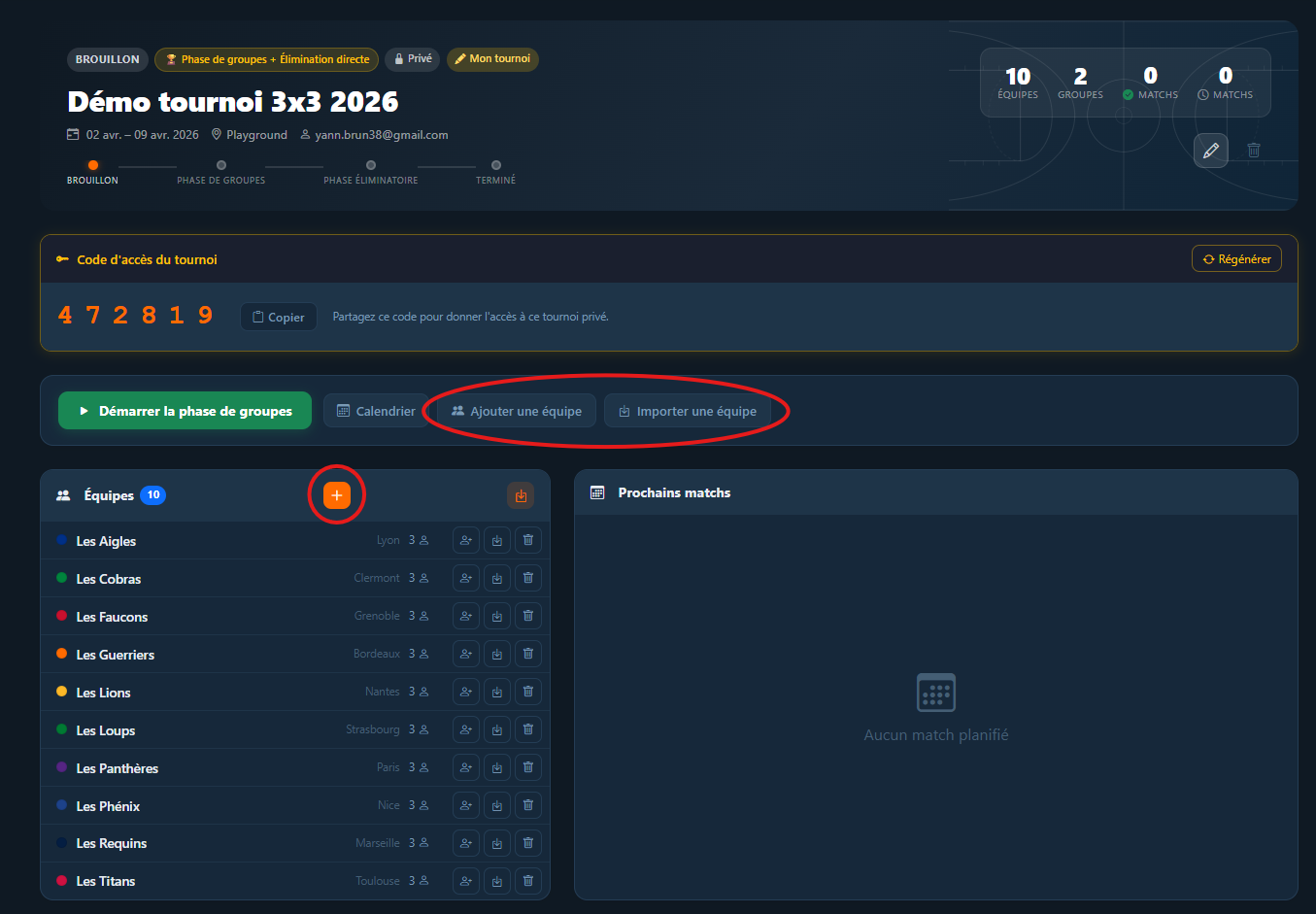
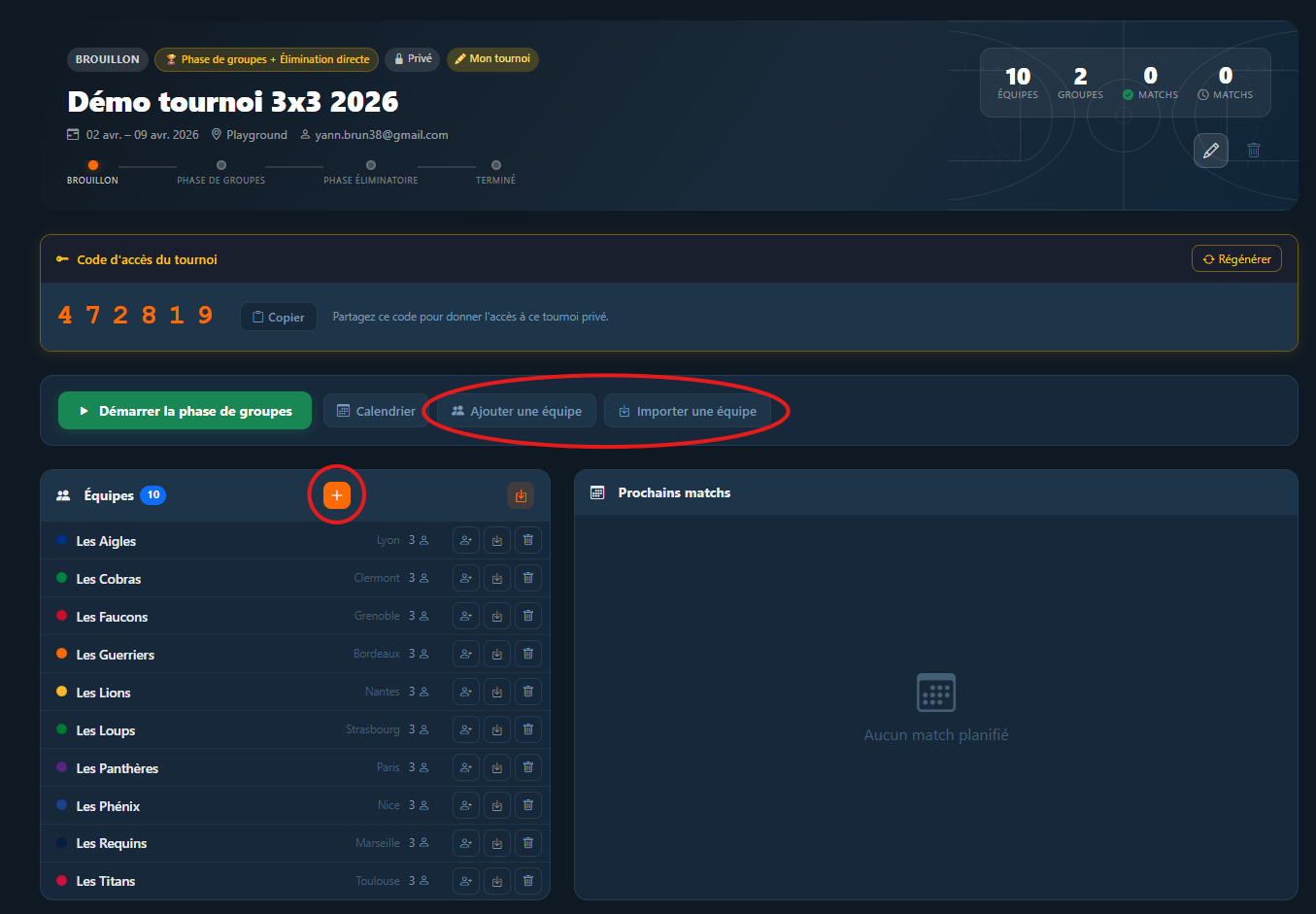
If teams or players have already participated in a previous tournament, use the Import button to clone them in one click. You can import a team with or without its players. From the team detail view, you can also import players individually from other teams.
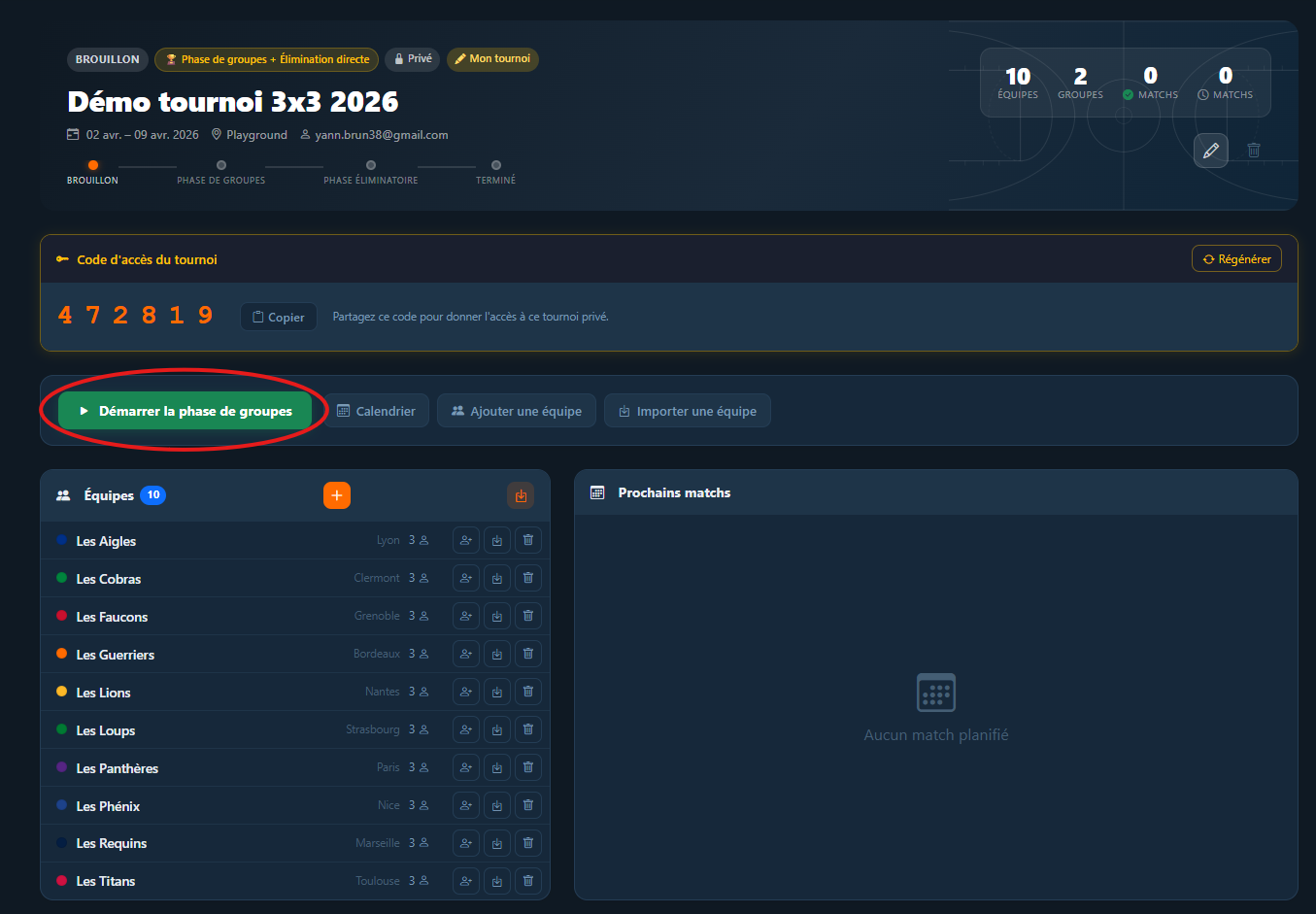
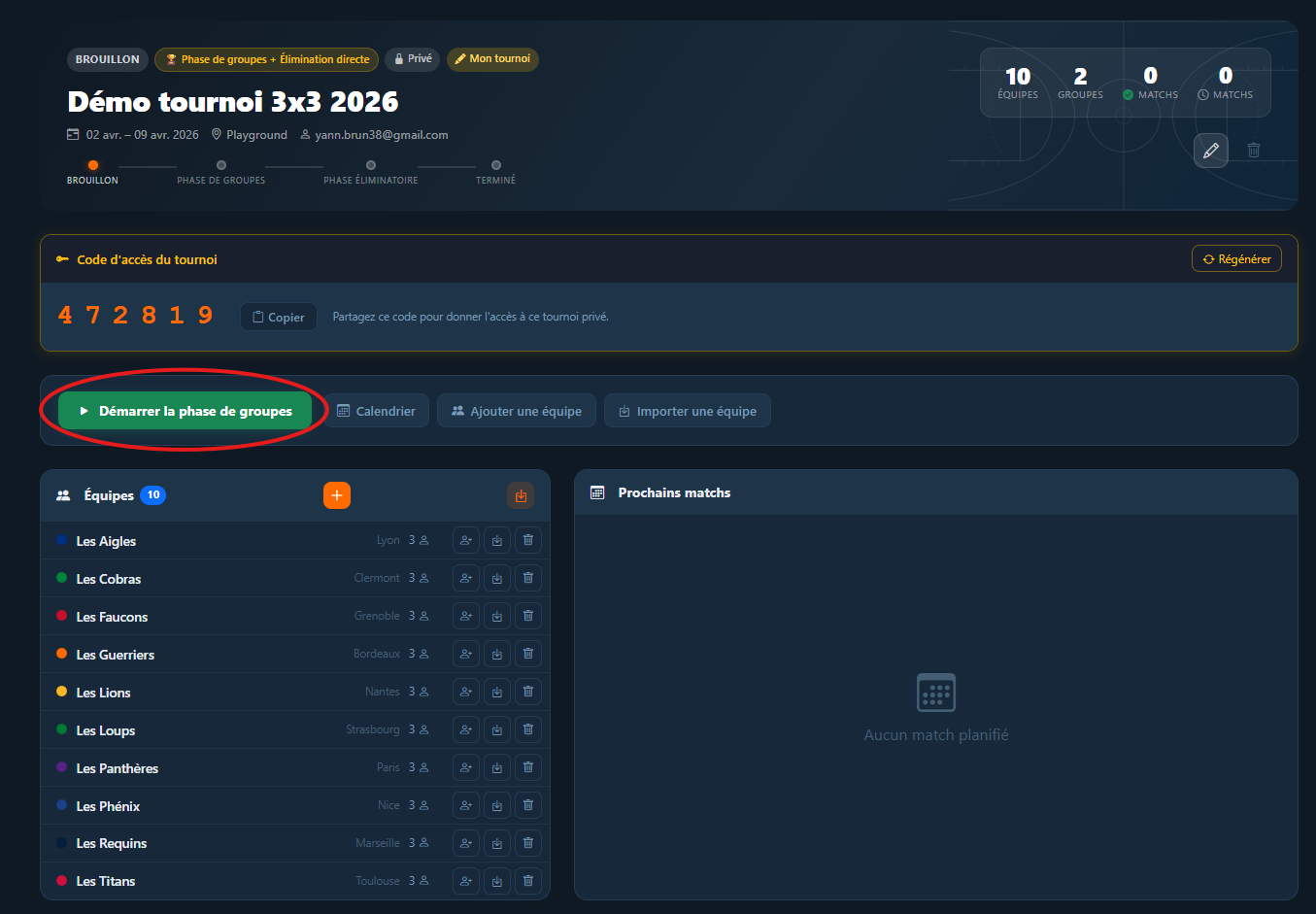
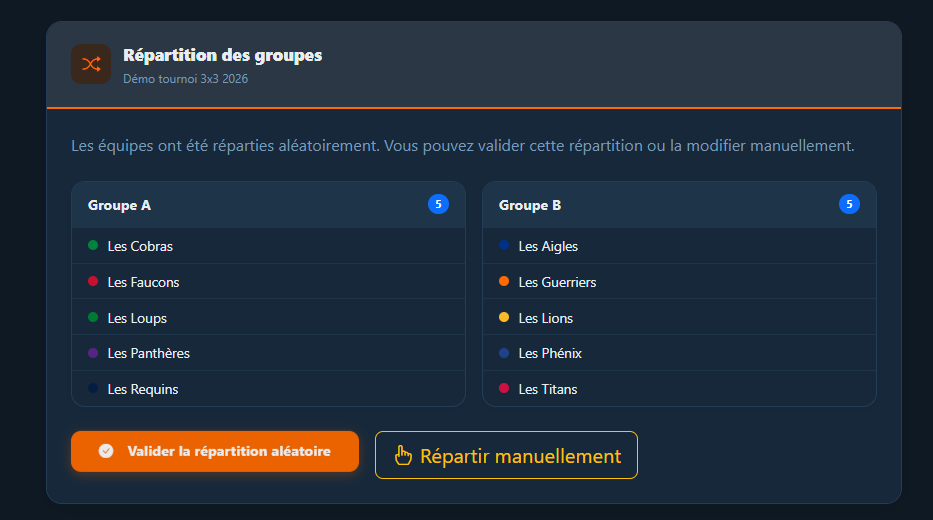
Once all teams are registered, click 'Start group stage'. The application automatically generates groups and randomly assigns teams.
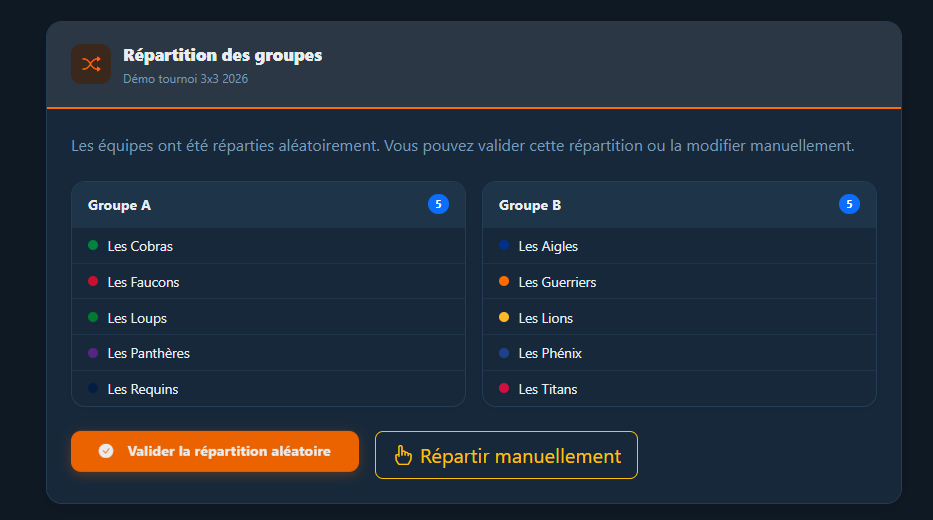
After generation, you will be redirected to a review screen allowing you to confirm the random draw or proceed to manual arrangement.
If you choose manual arrangement, a drag-and-drop view opens. Drag teams from their current group to the group of your choice.
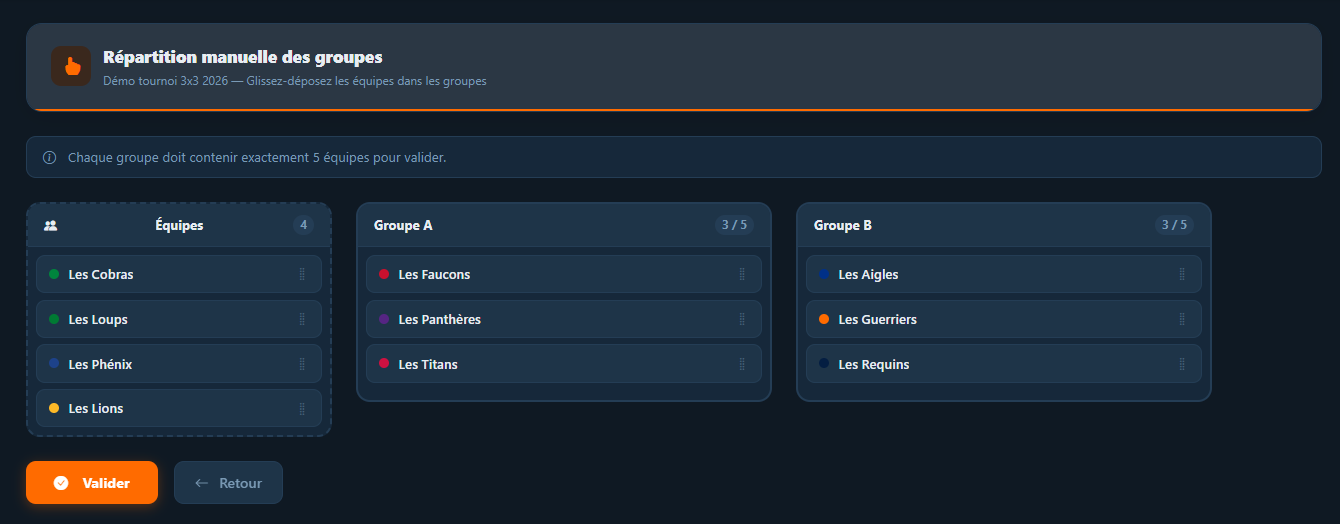
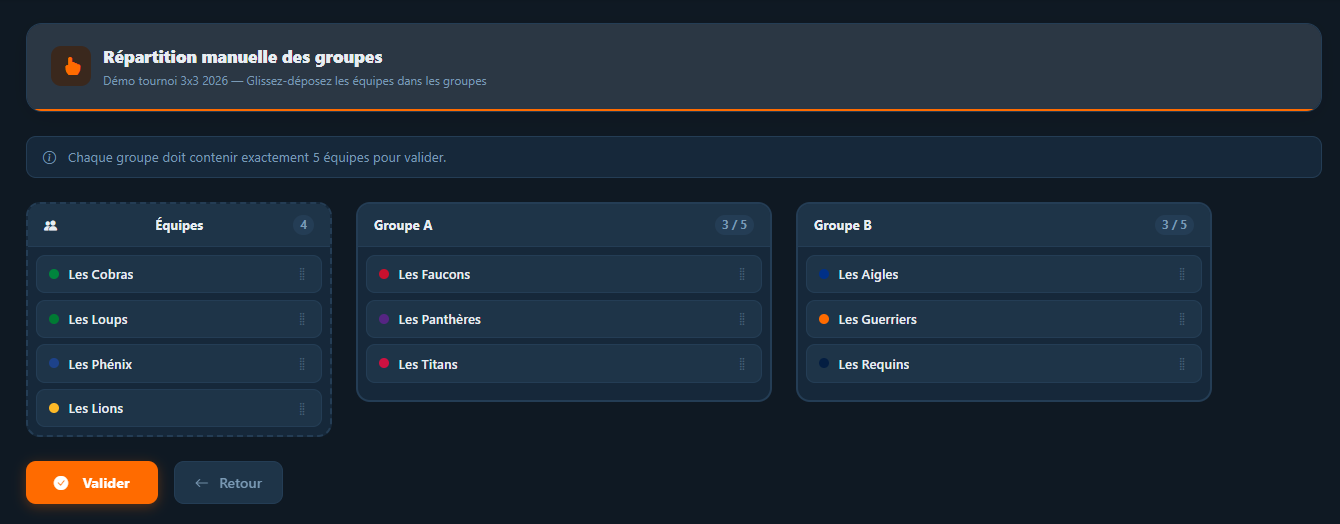
Each group shows a real-time counter. The Validate button is only active when all groups are complete.
After generating matches (groups or bracket), the application automatically redirects you to the scheduling view. You can also access it at any time from the 'Match scheduling' button in the tournament action bar.
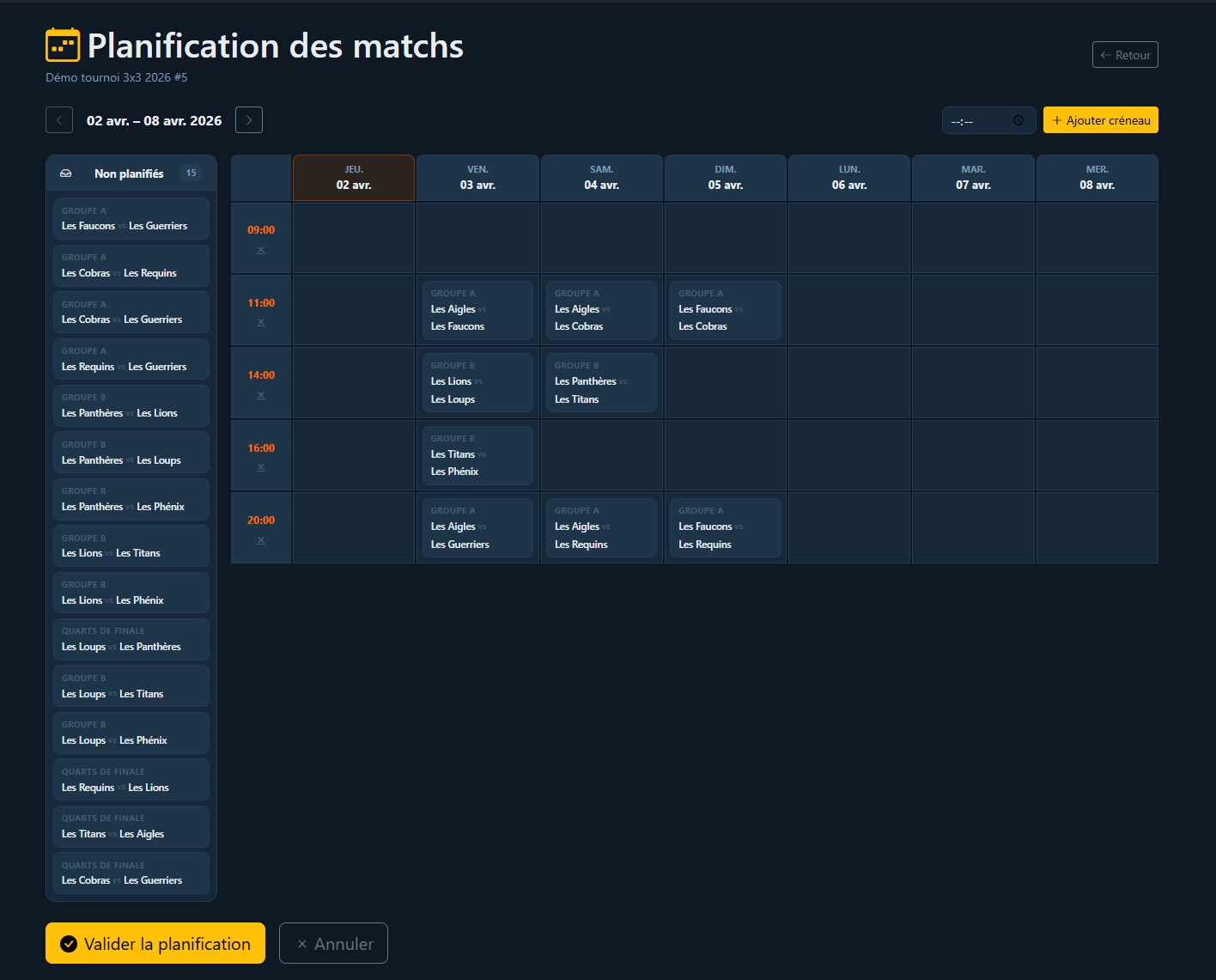
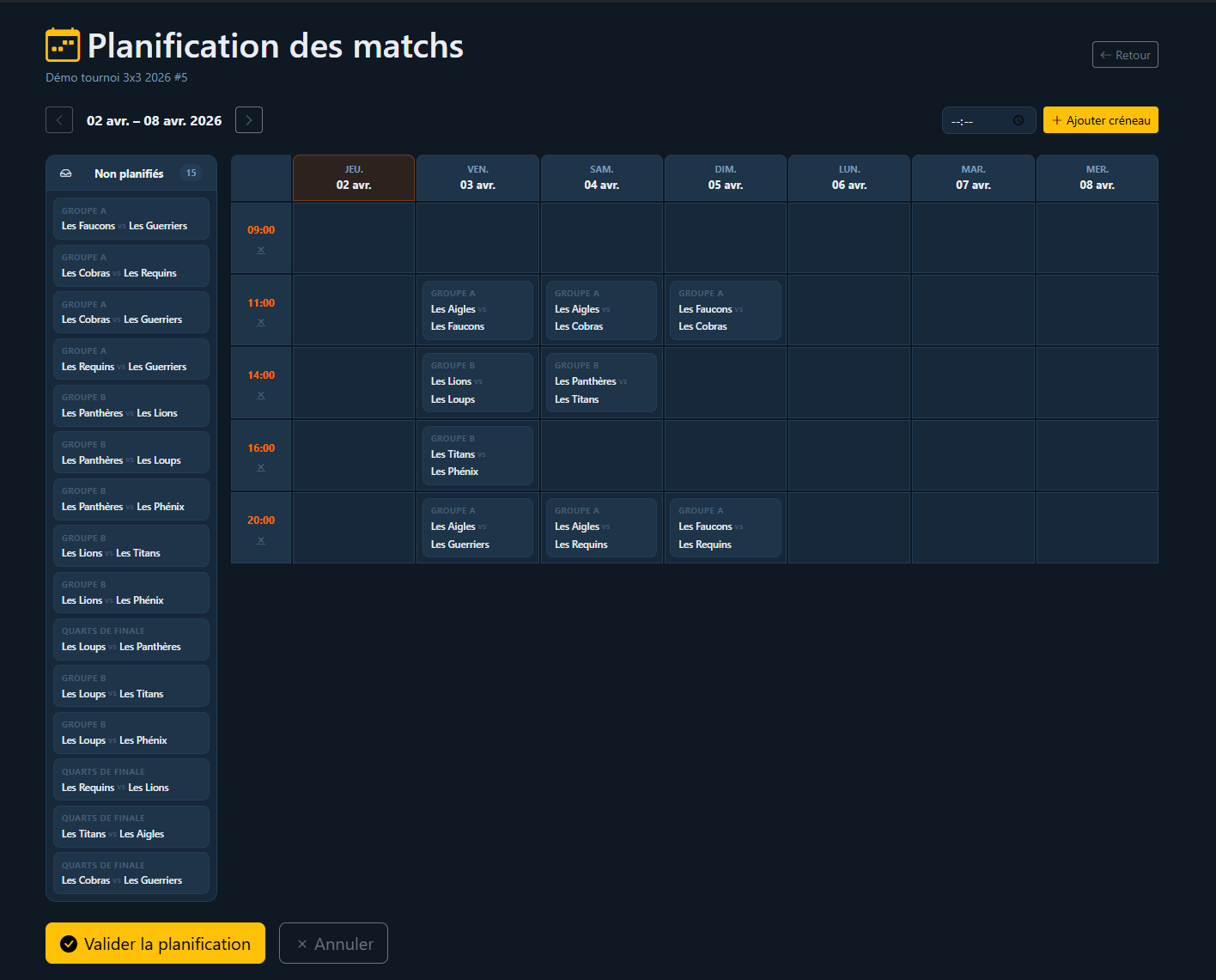
The view shows a grid with tournament days as columns and time slots as rows. Drag matches from the 'Unscheduled' column into the cell of your choice. You can add or remove time slots as needed.
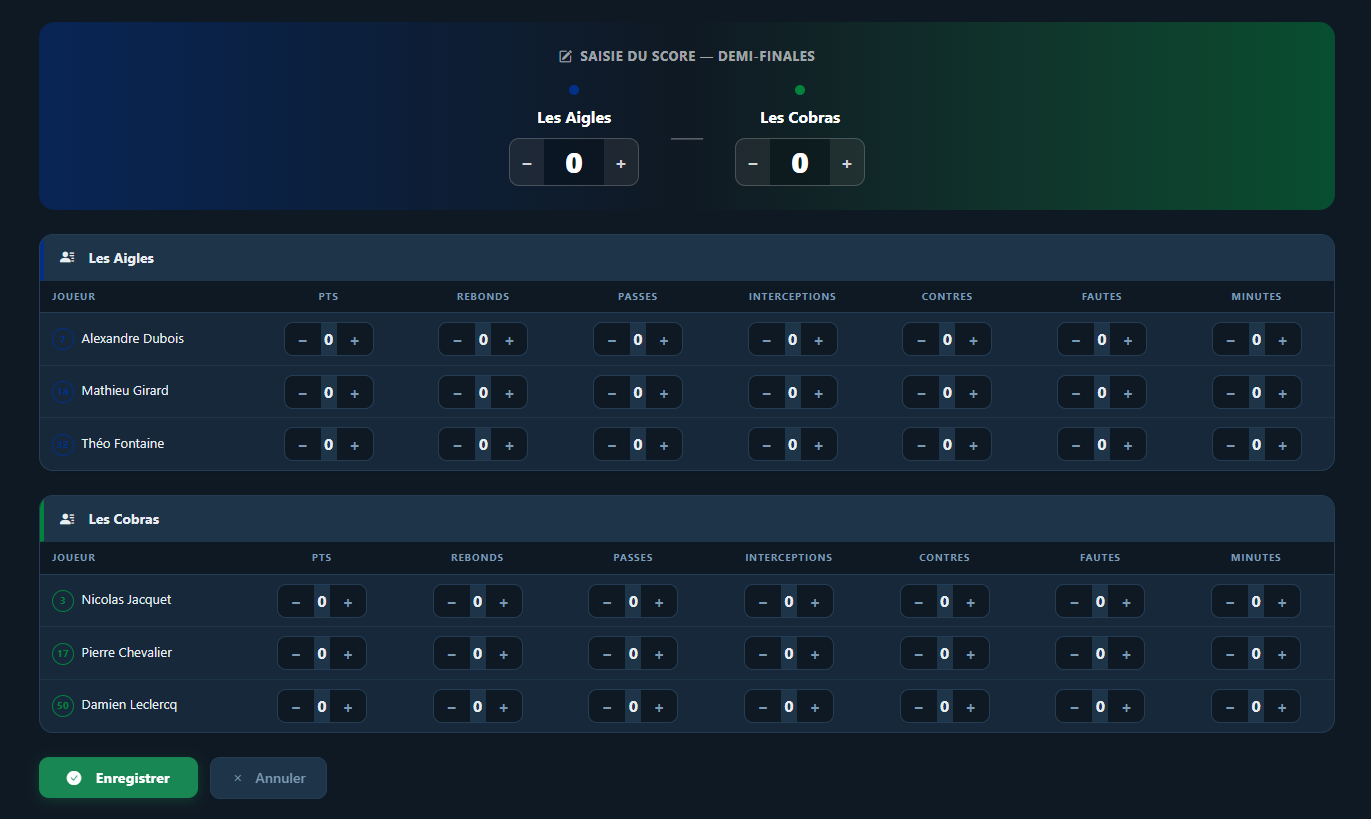
From the calendar or match detail view, click 'Enter score'. Use the + and − buttons to enter each team's score, then optionally fill in individual player statistics.
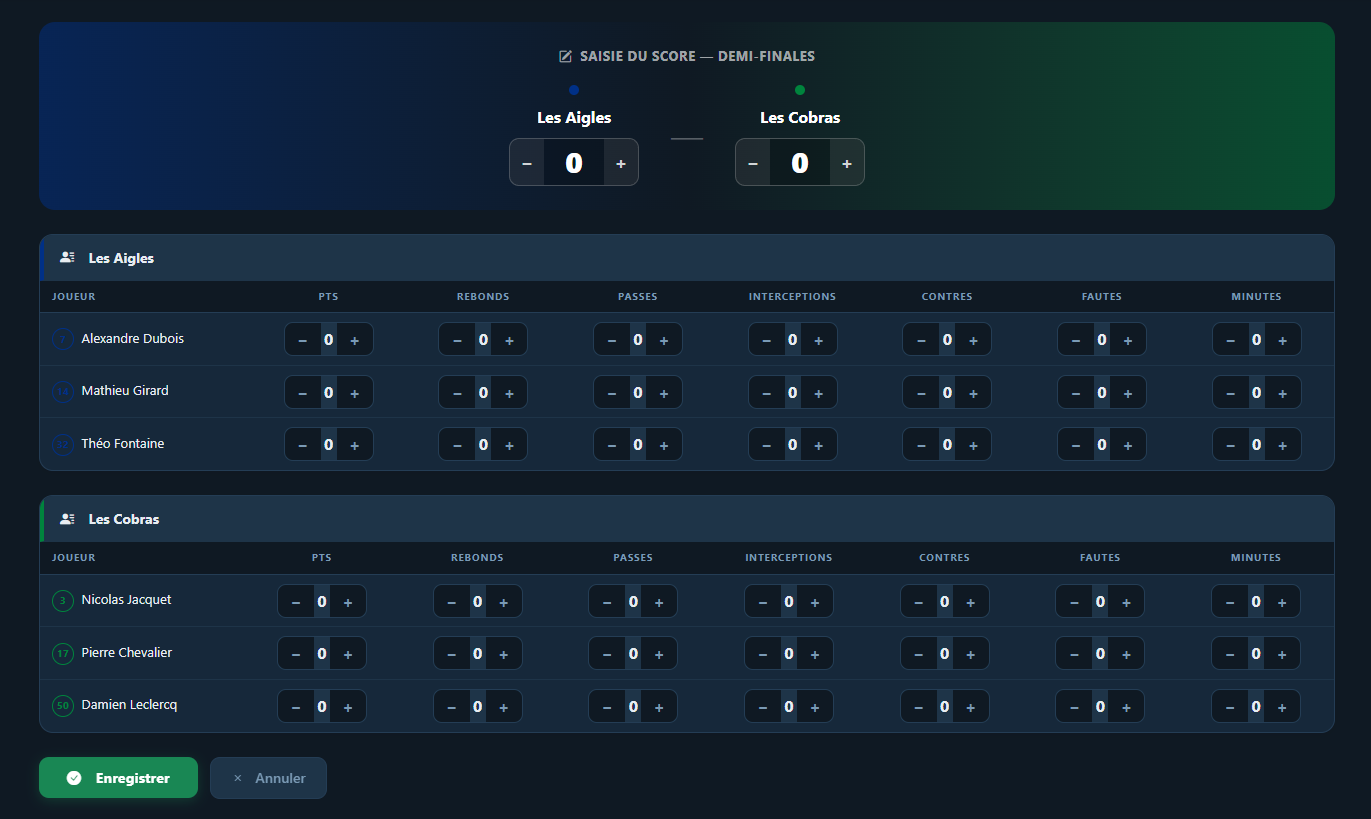
Group standings are automatically updated after each score entry.
When all group matches are complete, click 'Advance to knockout'. The application automatically qualifies the top N teams from each group and generates the bracket.
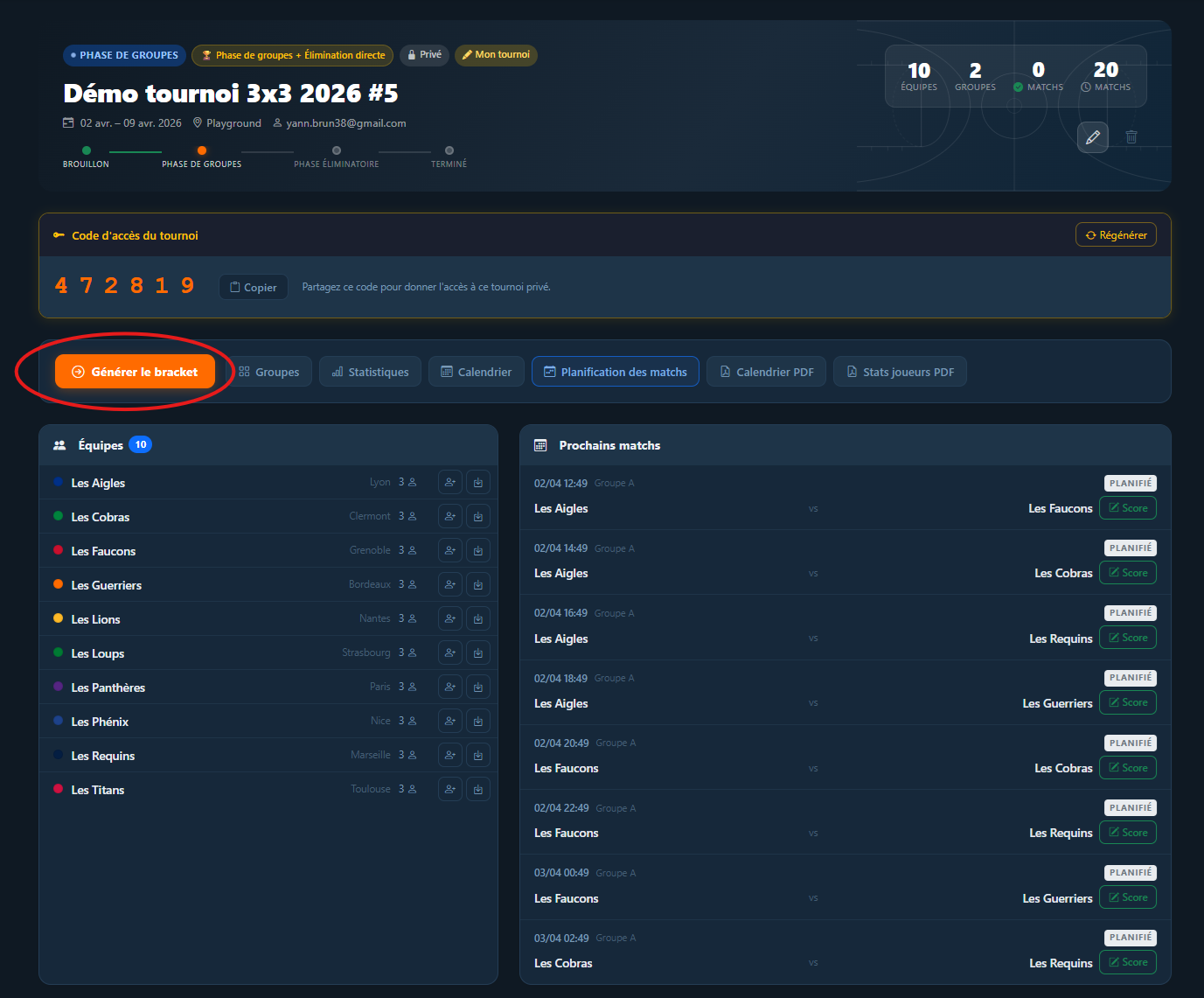
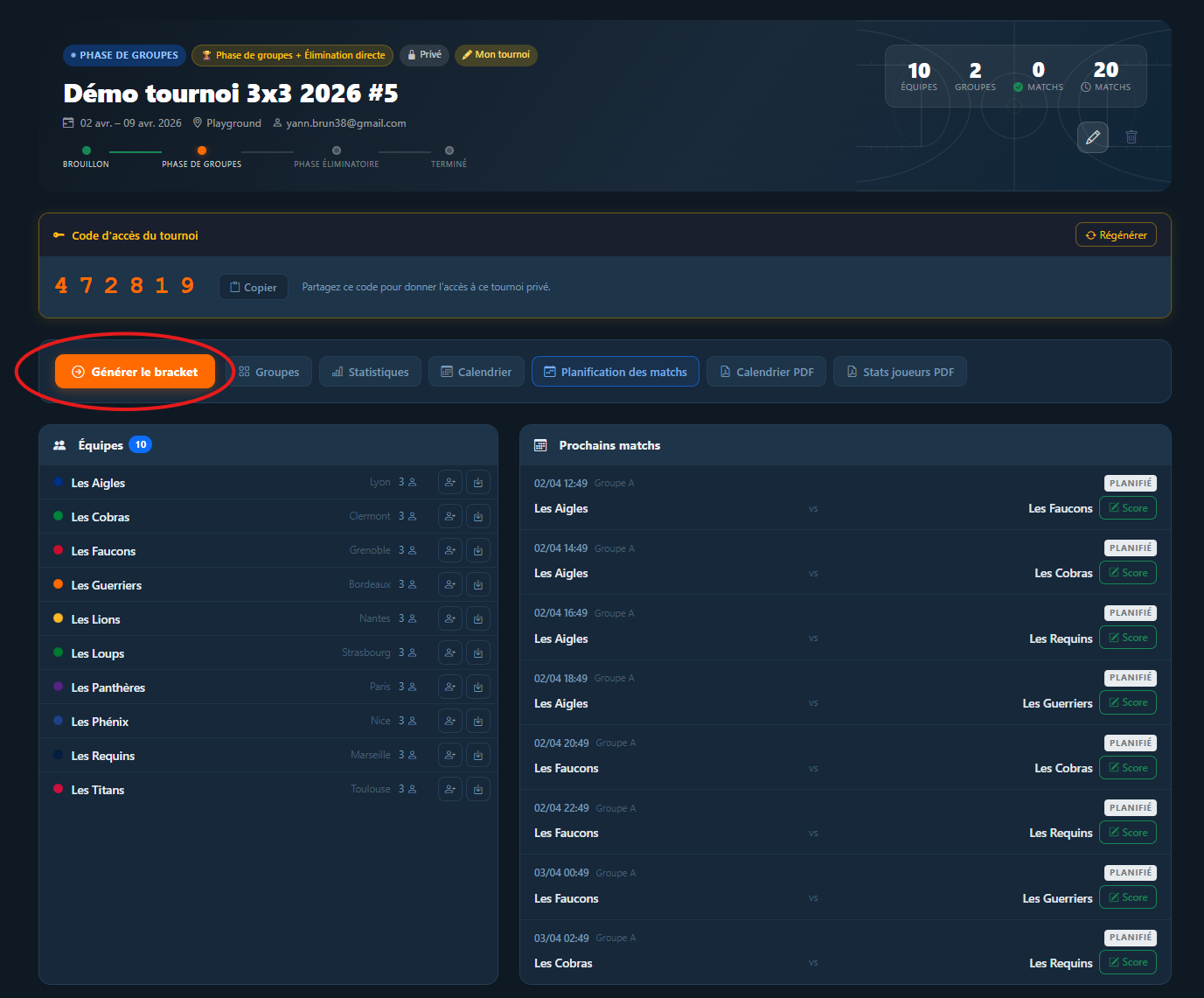
The seeding mode (random or by position) determines how qualified teams are placed in the bracket. This is set when creating the tournament.
The Bracket view shows the full tournament tree with connectors between rounds. For each series, enter scores match by match. The series winner automatically advances to the next round.
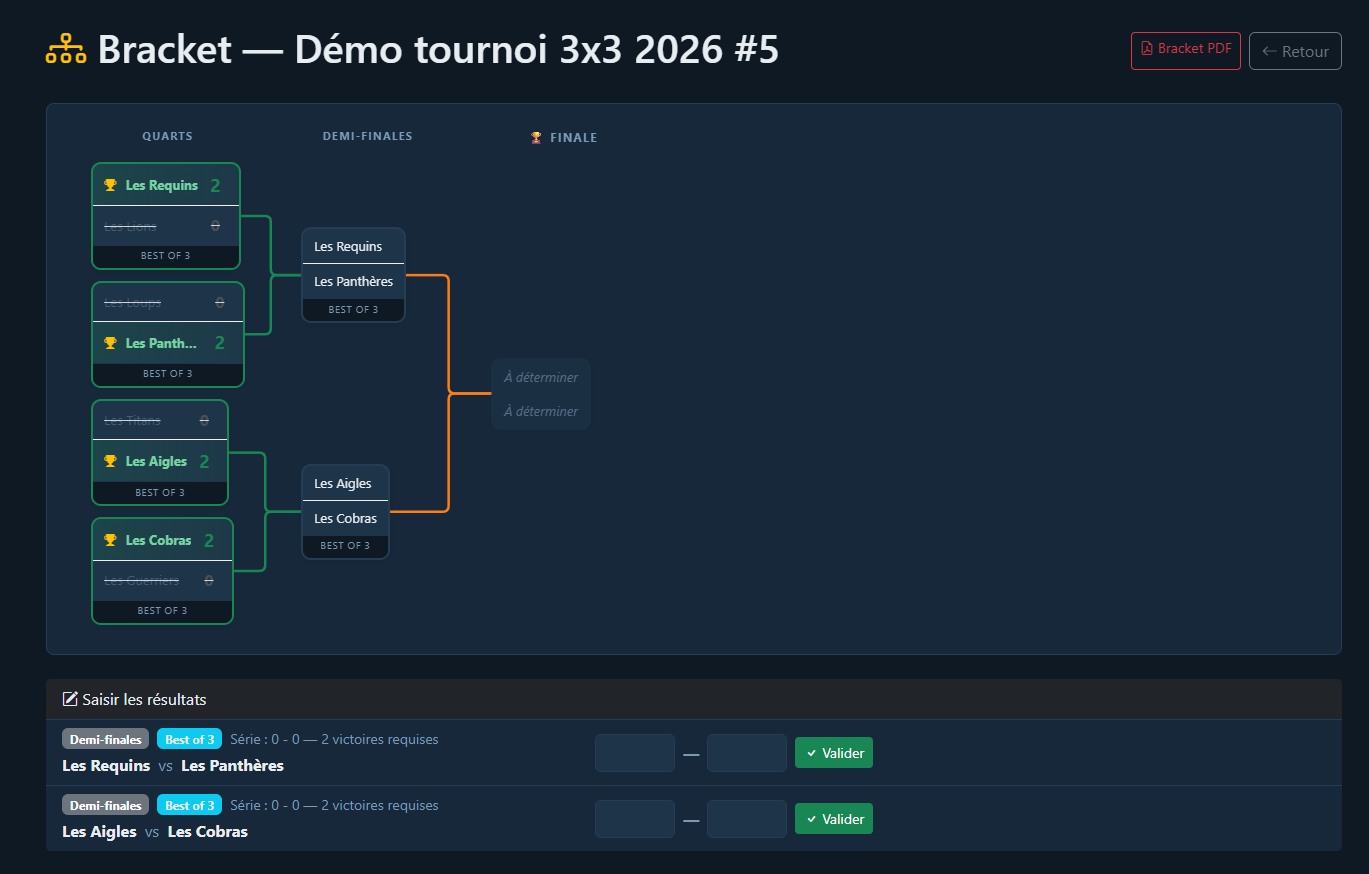
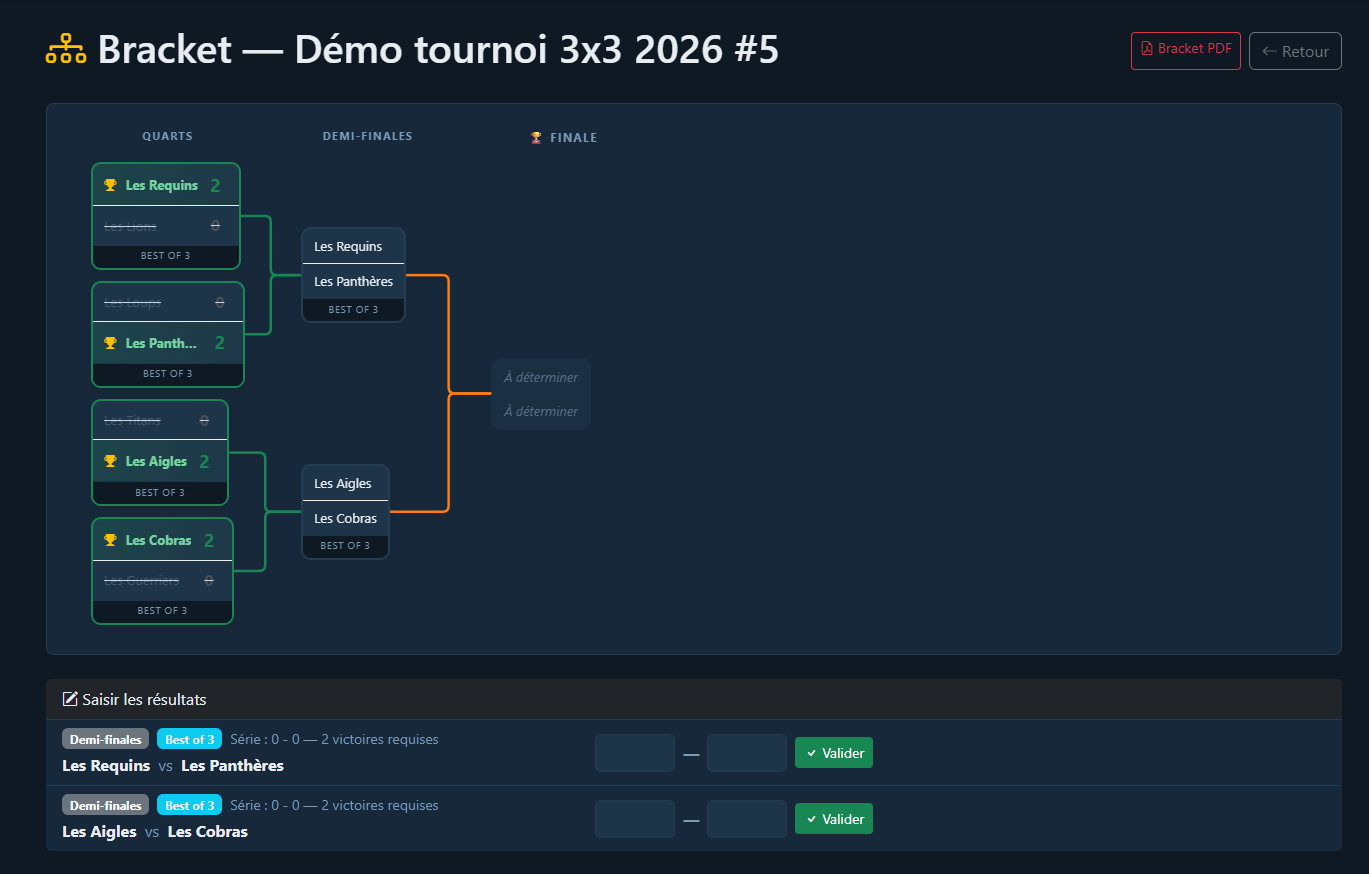
Best-of 3, 5 or 7 series end automatically once a team reaches the required number of wins.
BasketTournament allows you to export several PDF documents from different views of the application.
- Calendar PDF — from tournament detail: full list of matches with dates, teams and scores
- Standings PDF — from the Groups view: standings table for each group
- Bracket PDF — from the Bracket view: elimination tree with series results
- Player stats PDF — from tournament detail (organizer only): individual statistics for all players
- Match sheet PDF — from a finished match detail: score and detailed match statistics


From the Tournaments page, you can view all public tournaments without logging in. Click a tournament to access its detail page: registered teams, match schedule and general information.


Private tournaments are hidden by default. To access one, click 'Access code' in the navigation bar and enter the 6-digit code provided by the organizer.


From a tournament detail view in the group stage, click 'Groups' to access standings. Each group shows a table with played, won, lost, points scored and point difference.


The Bracket view is accessible from the tournament detail once the knockout phase has started. It shows the full tree with series results, teams still in contention, and the path to the final.


From a team detail view, click a player to access their profile. You will find physical information (height, position, number) and average statistics per match: points, rebounds, assists, steals, blocks and minutes played.


The search bar in the navbar lets you quickly find any tournament, team or player by name. Results are grouped by type and each row is a direct link to the corresponding page.

